
Premier Loans is a tailored crypto loan service that offers personalized rates and borrowing limits. You can use your long-term crypto holdings as collateral to borrow other digital assets. This allows you to unlock more value from your assets and access funds quickly. Follow this guide to get started.
Submit an Application
View Your Application
Place an Order
View Your Loan
Repay Your Loan
Renew Your Loan
Adjust Your Collateral
Place an Order
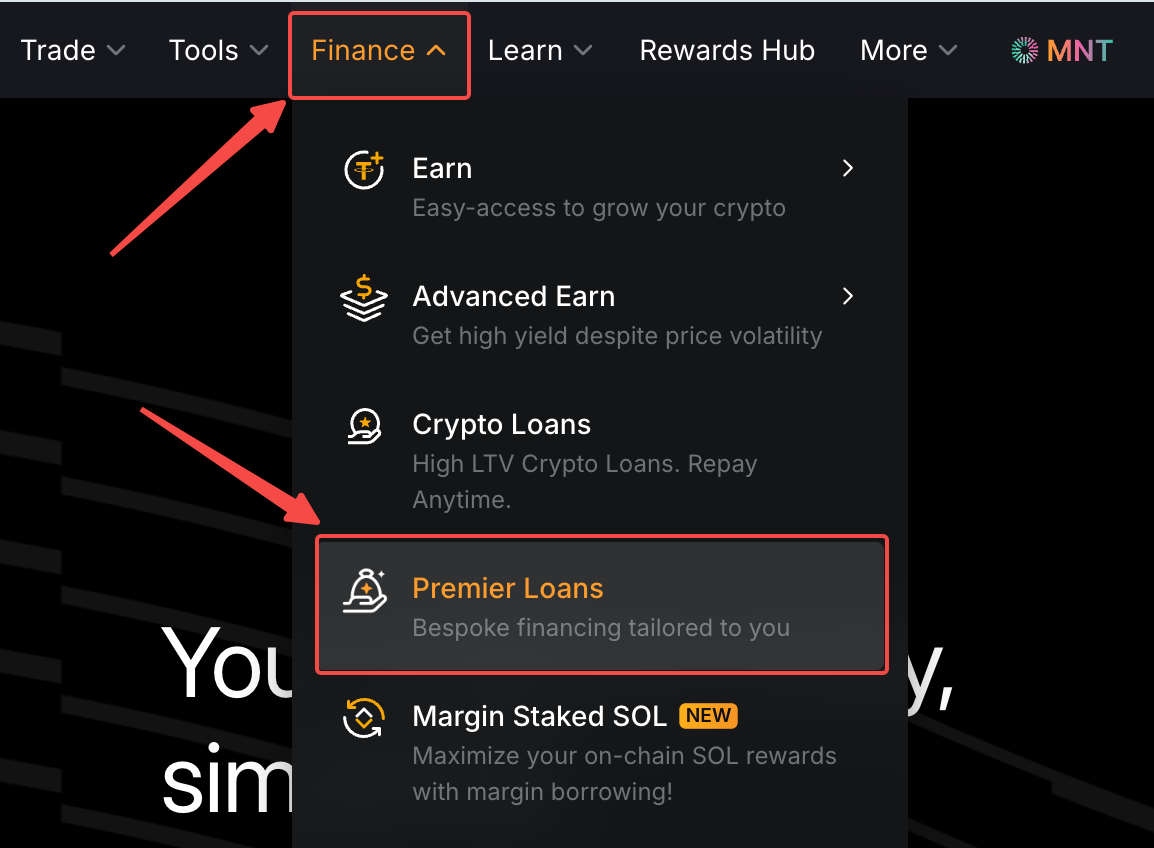
Step 1: Log in to the Bybit website and click Finance → Premier Loans in the top navigation bar to access the Premier Loans page.
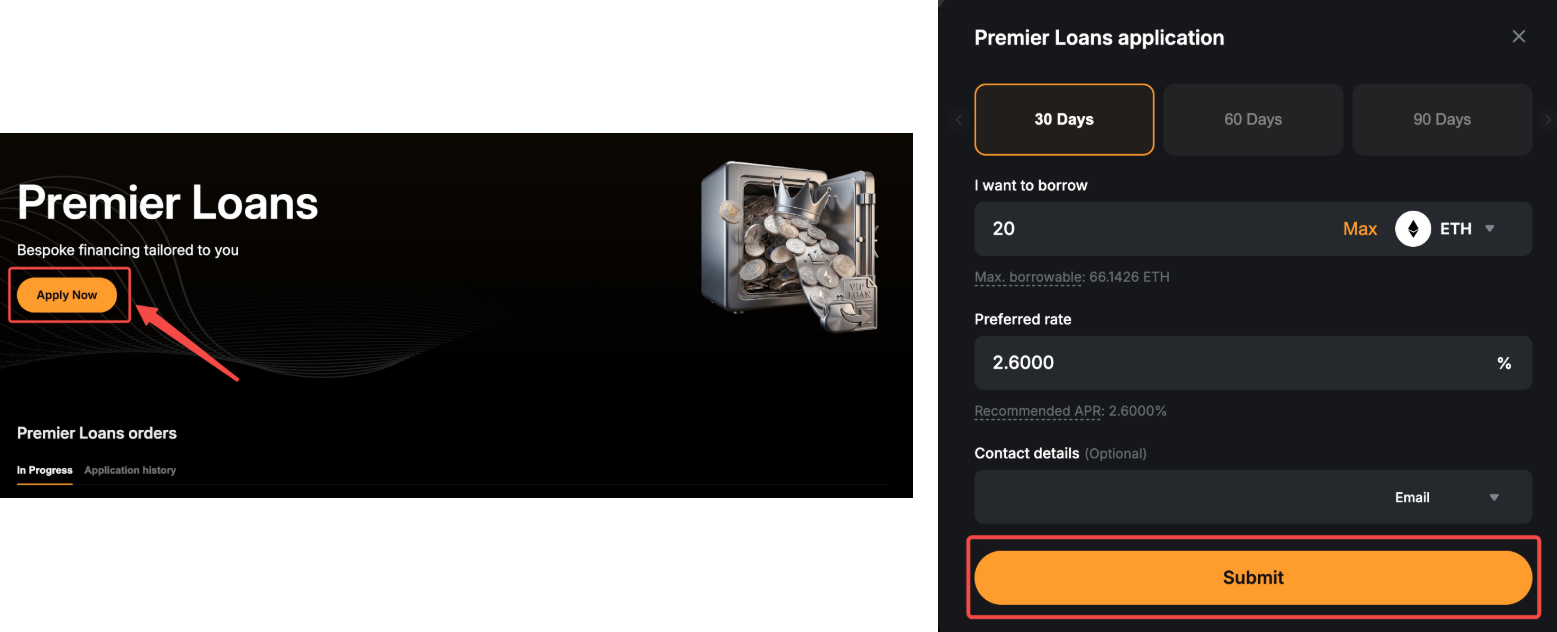
Step 2: Click Apply Now and complete the required information:
- Duration: Choose from 7, 14, 30, 60, 90, or 180 days, depending on the asset type.
- Borrow token and amount: The minimum borrowable amount is $300,000 equivalent. The maximum amount depends on your total collateral across Crypto Loans and your Funding Account.
- Preferred rate: Enter your preferred rate. You may refer to the recommended market rate for reference.
- Contact details: Provide your Telegram, WhatsApp, email, or WeChat contact information.
Once completed, click Confirm Premier Loans application to submit your application for review.
Note: If you are a VIP or Institutional user with a dedicated Relationship Manager (RM), please contact your RM before submitting your application for a smoother process.
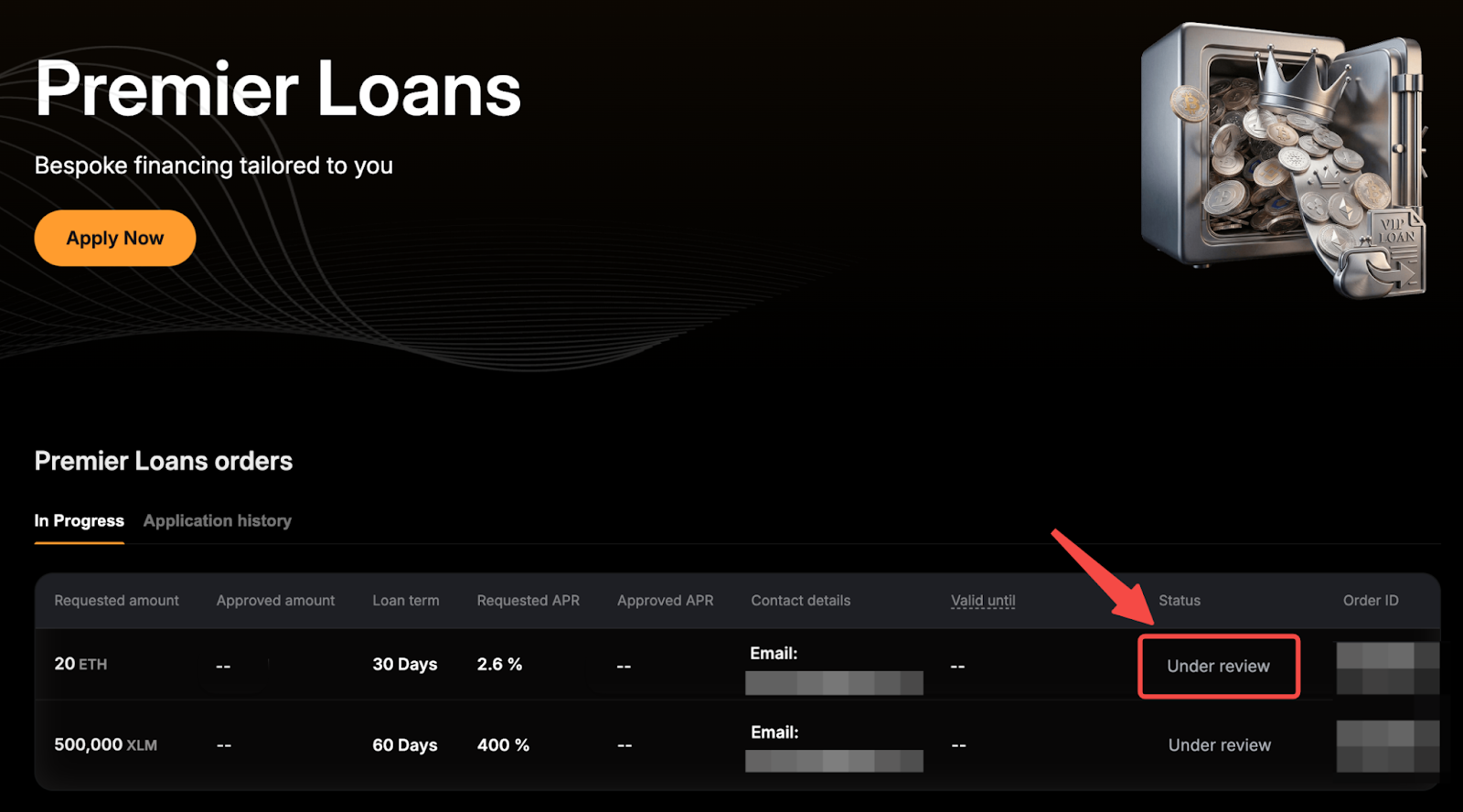
Step 3: Your application is now under review.
View Your Application
To view your applications, go to the Premier Loans homepage, where you will see two tabs:
- In Progress: This tab displays applications that are either Under review or Ready to borrow. Each application shows key details, including the borrow amount, duration, APR, and submitted contact information. For applications with a Ready to borrow status, additional details such as the approved amount, approved APR, and expiration date will also be displayed.
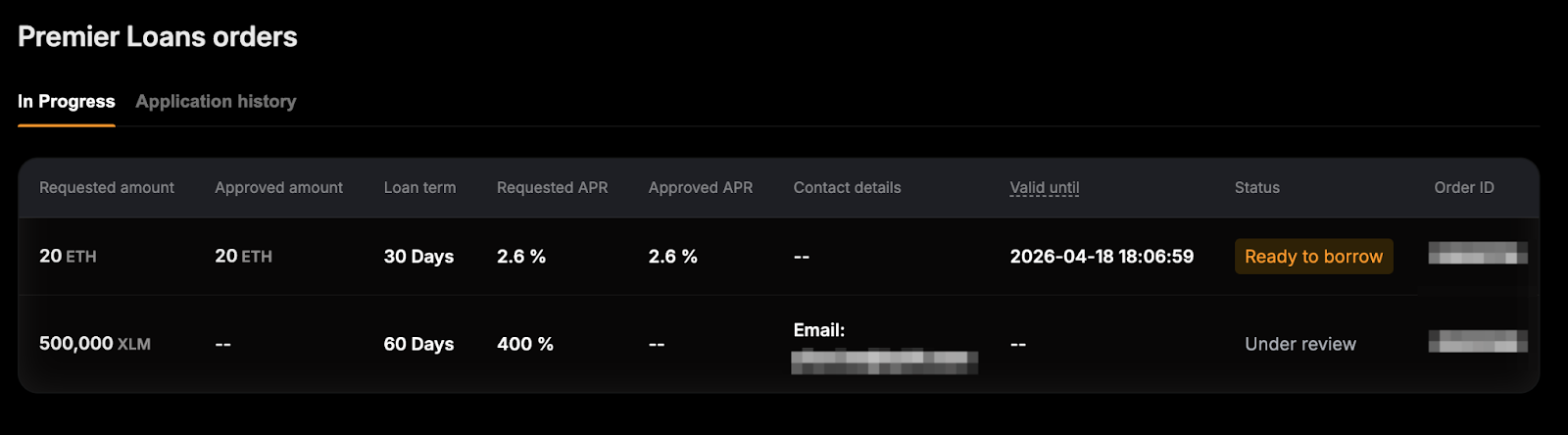
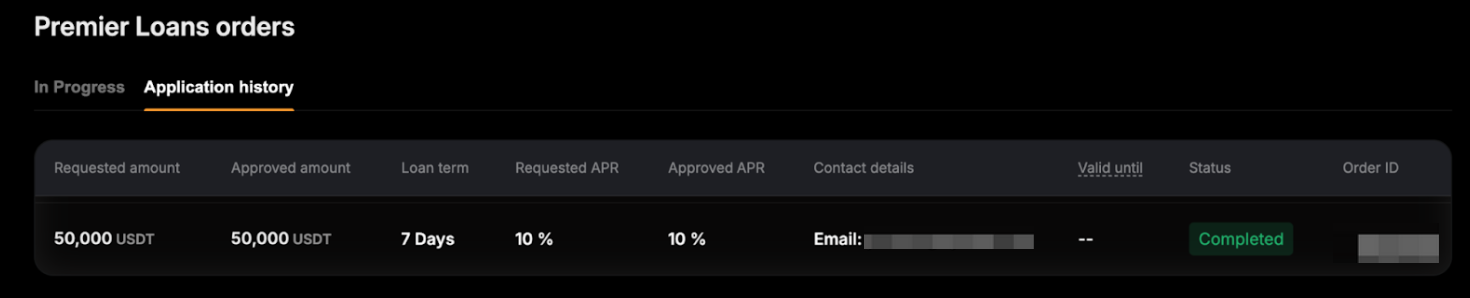
- Application History: This tab shows your past applications, including successfully borrowed loans, as well as applications that were rejected or expired before borrowing.
Place an Order
Step 1: Once your application is approved, go to the In Progress tab and click Borrow on the far right of the application to begin.
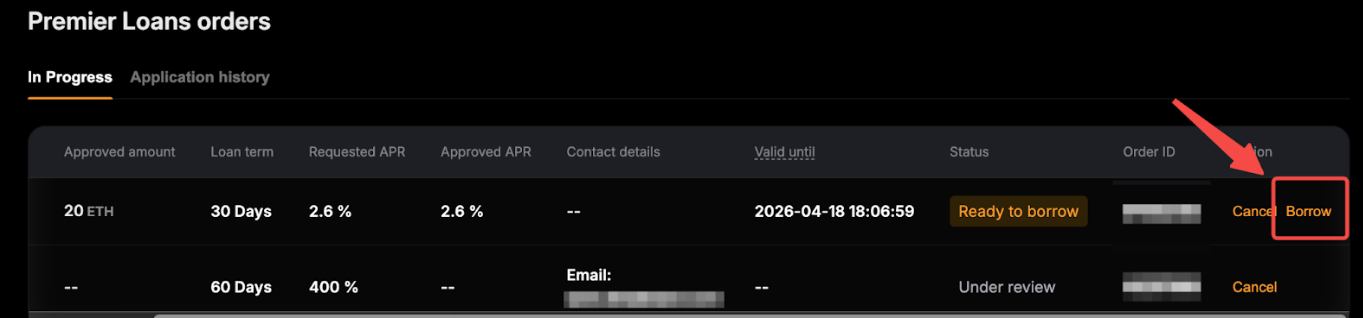
Note: Approved applications are valid for 24 hours. If you do not proceed with borrowing within this period, the application will be automatically canceled.
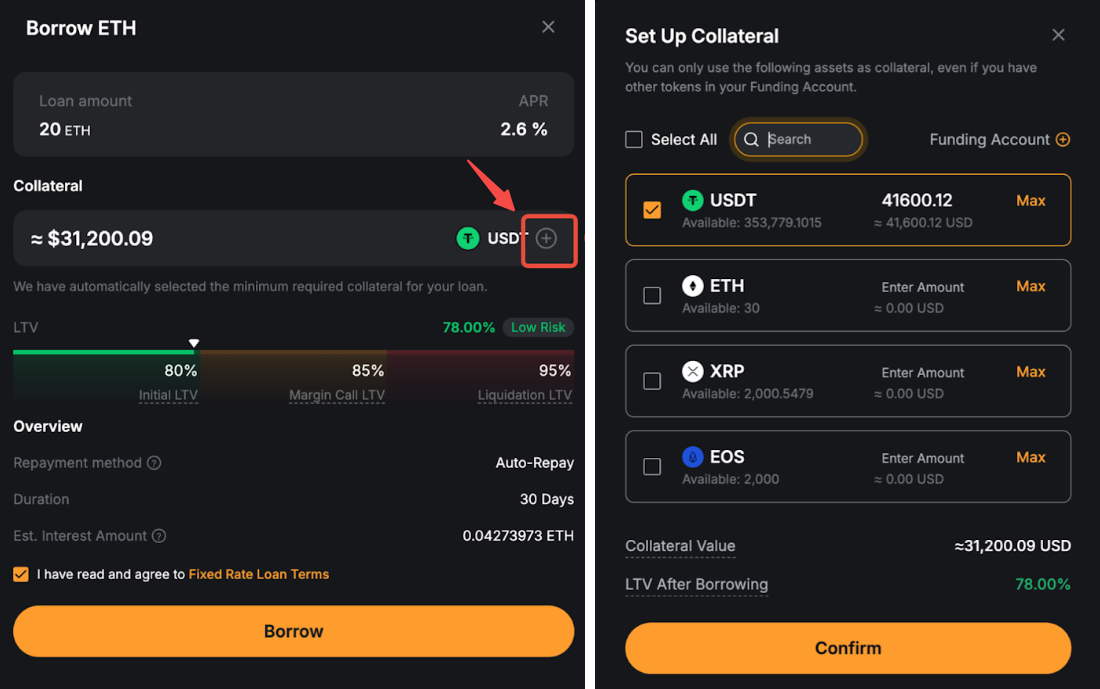
Step 2: The system will automatically select the minimum required collateral for your loan.
If you want to change the collateral asset or add more collateral, click the "+" icon in the collateral section. Make your adjustments, then click Confirm to apply the changes. You can also adjust your collateral at any time from the Crypto Loans dashboard.
Once your collateral is set, click Borrow to proceed.
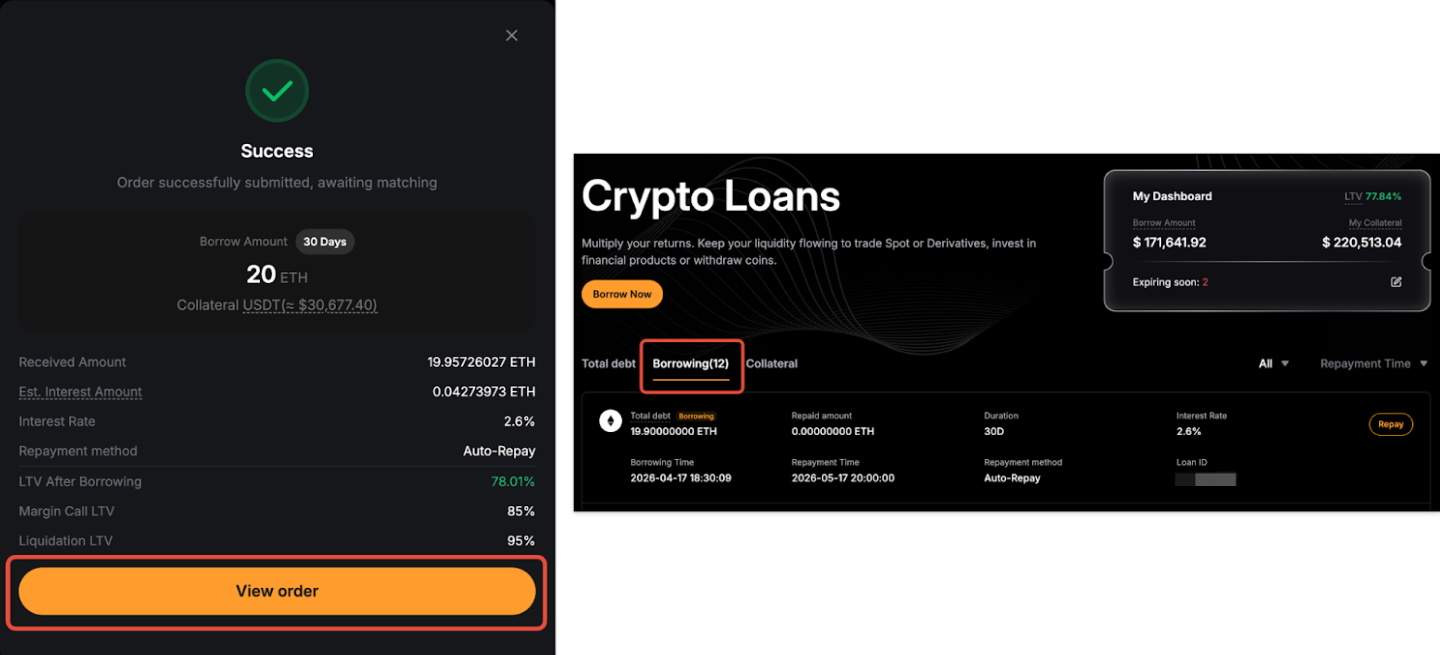
Step 3: Your borrowing request has been submitted successfully. Click View Order to go to the Crypto Loans dashboard, where you can check the status of your borrowing orders.
Similar to Fixed Rate Loans, your request will go through a funding stage. Once funded, it will appear under the Borrowing tab.
Notes:
— Interest is charged upfront. Once a borrow order is matched, the borrowed assets, minus the interest, will be credited to your Funding Account.
— A single borrow order may be matched with multiple supply orders. If these matches occur at different times, the borrow order will have multiple settlement dates.
— The LTV is calculated based on Cross Margin mode, where collateral assets are used across all loan orders. The Initial LTV is set at 80%, meaning the total value of your borrowed assets and interest cannot exceed 80% of your collateral's value (with the collateral value ratio applied).
View Your Orders
To check your loans, go to the Crypto Loans homepage. Here, you will be able to see an overview of your total borrowings, collaterals, and orders.
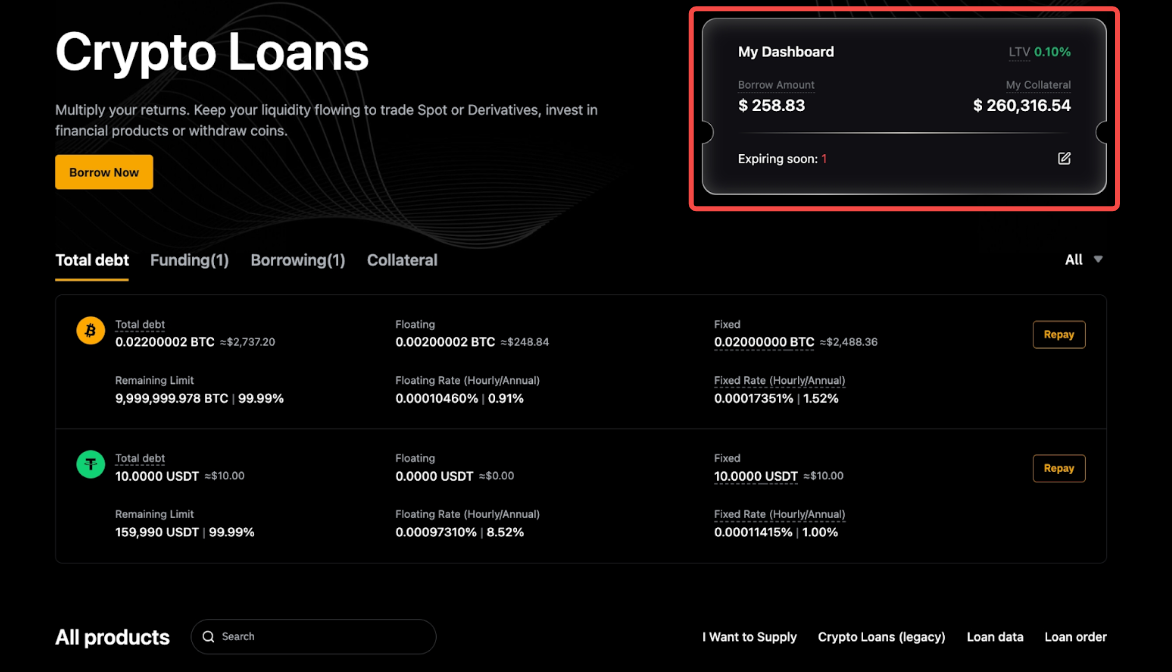
On the dashboard, your loan information is organized into the following sections:
- Total debt — Shows details of all borrowed assets under the Flexible and Fixed Rate Loan. A floating value is displayed for the Flexible Rate Loan while a fixed value is shown for the Fixed Rate Loan.
- Funding — Displays loan orders currently in the matching process. These orders are not yet fully executed and remain active until matching is complete.
- Borrowing — Shows loan orders that have been placed and are currently active.
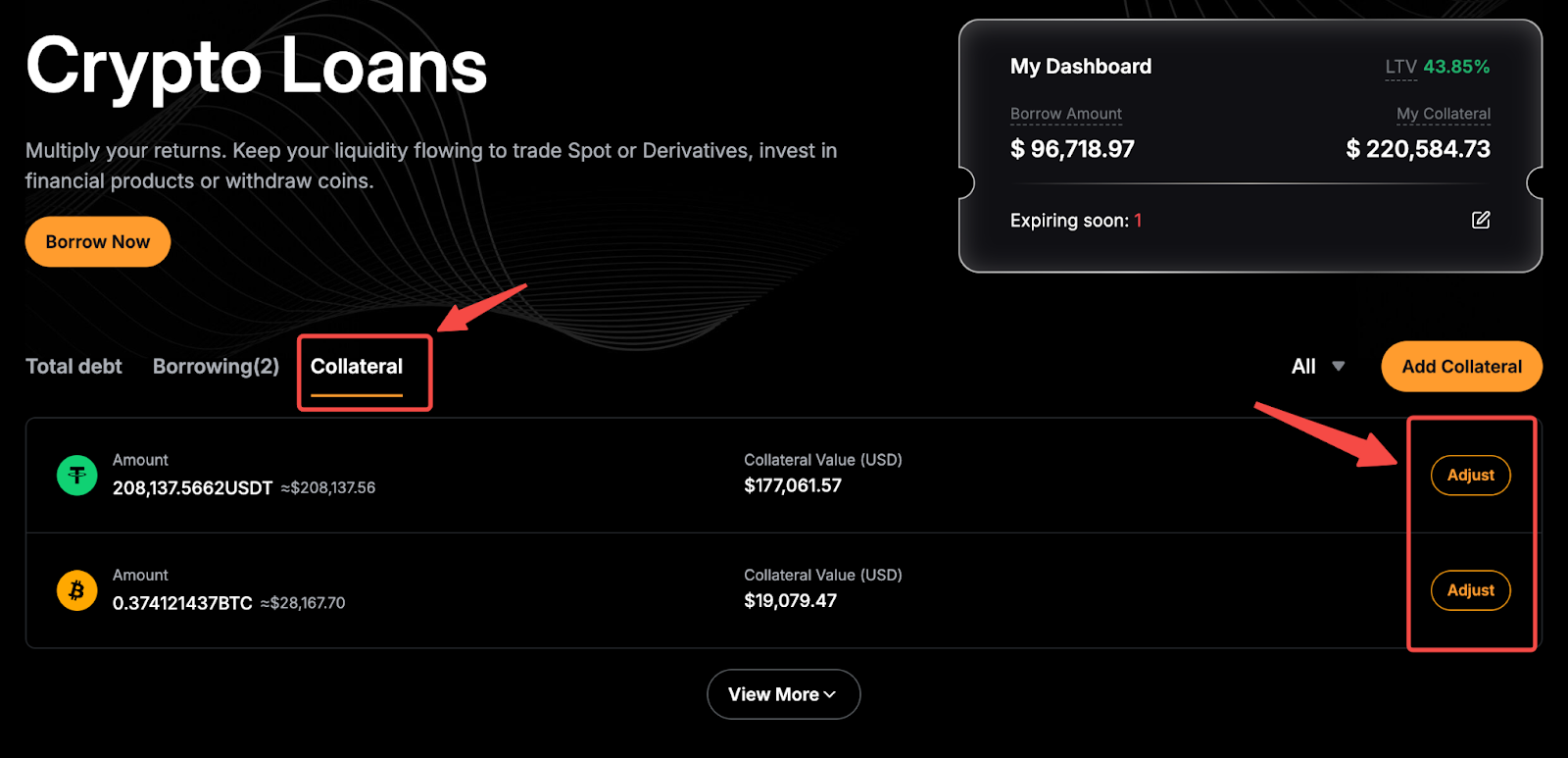
- Collateral — Lists all collateral assets along with their quantities and USD values. You can click Adjust to change your collateral.
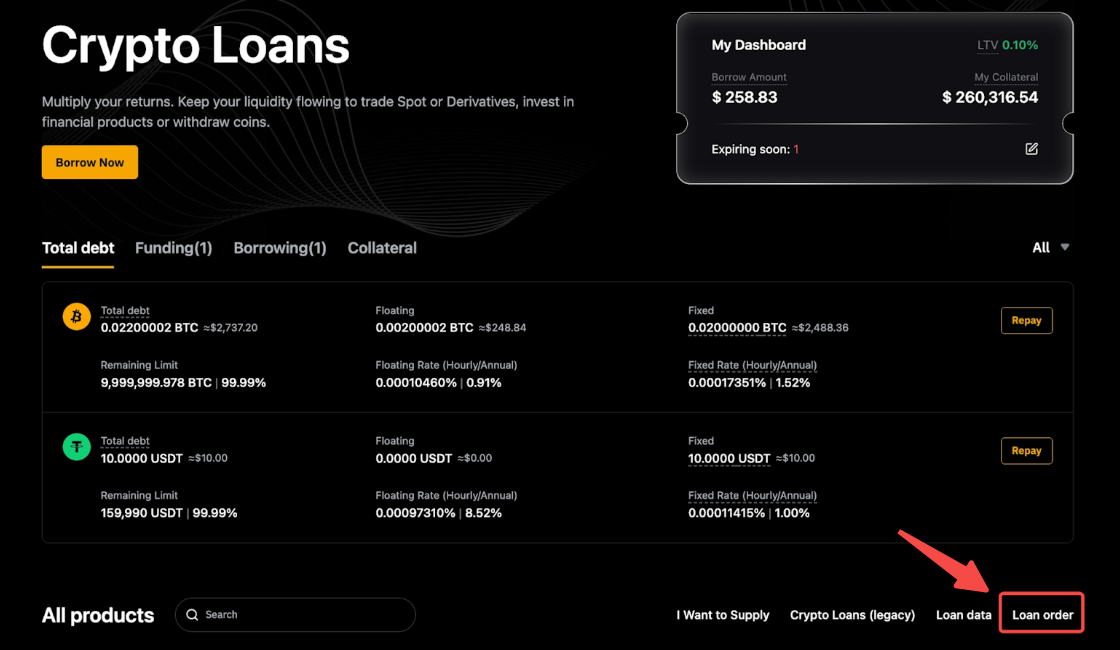
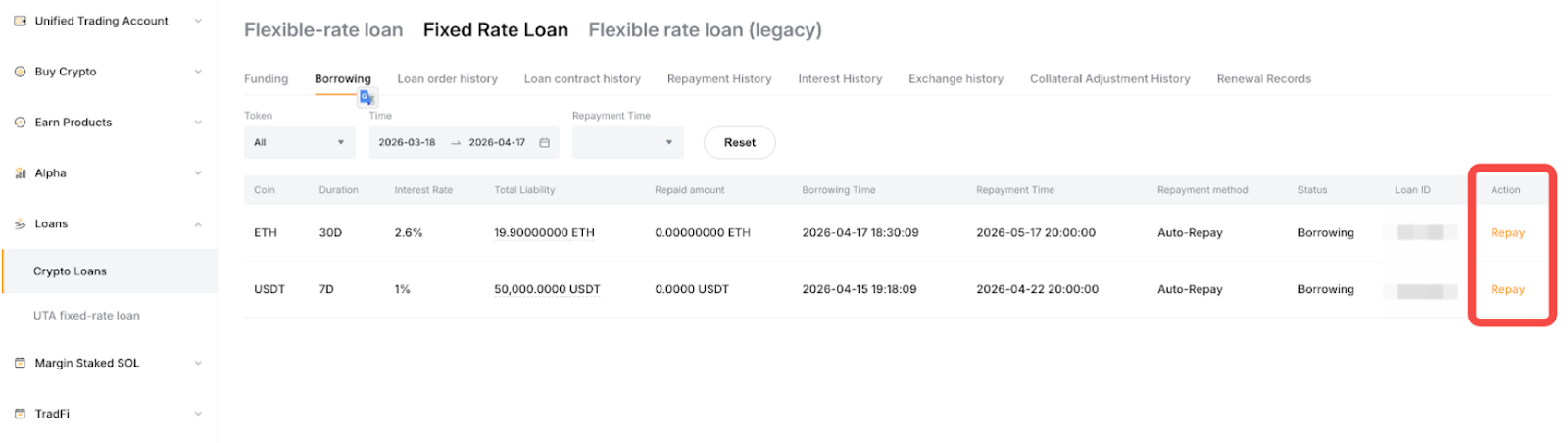
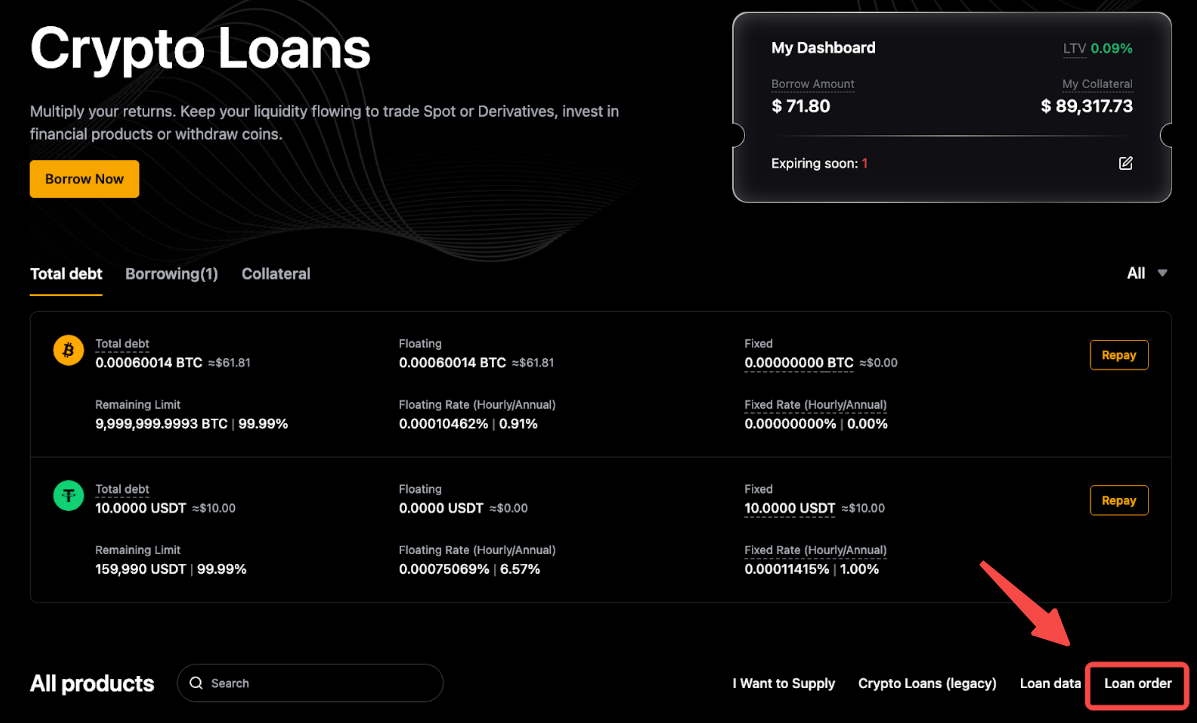
To view the full list of your orders, click Loan order in the Overview Dashboard. You can browse all Crypto Loans orders by switching between the product tabs at the top, including Flexible Rate Loan and Fixed Rate Loan (with Premier Loans categorized under Fixed Rate Loan). Each order includes detailed information such as loan amount, repayments, interest, collateral, and more. You can also filter by asset or time to narrow down the results.
Repay Your Loan
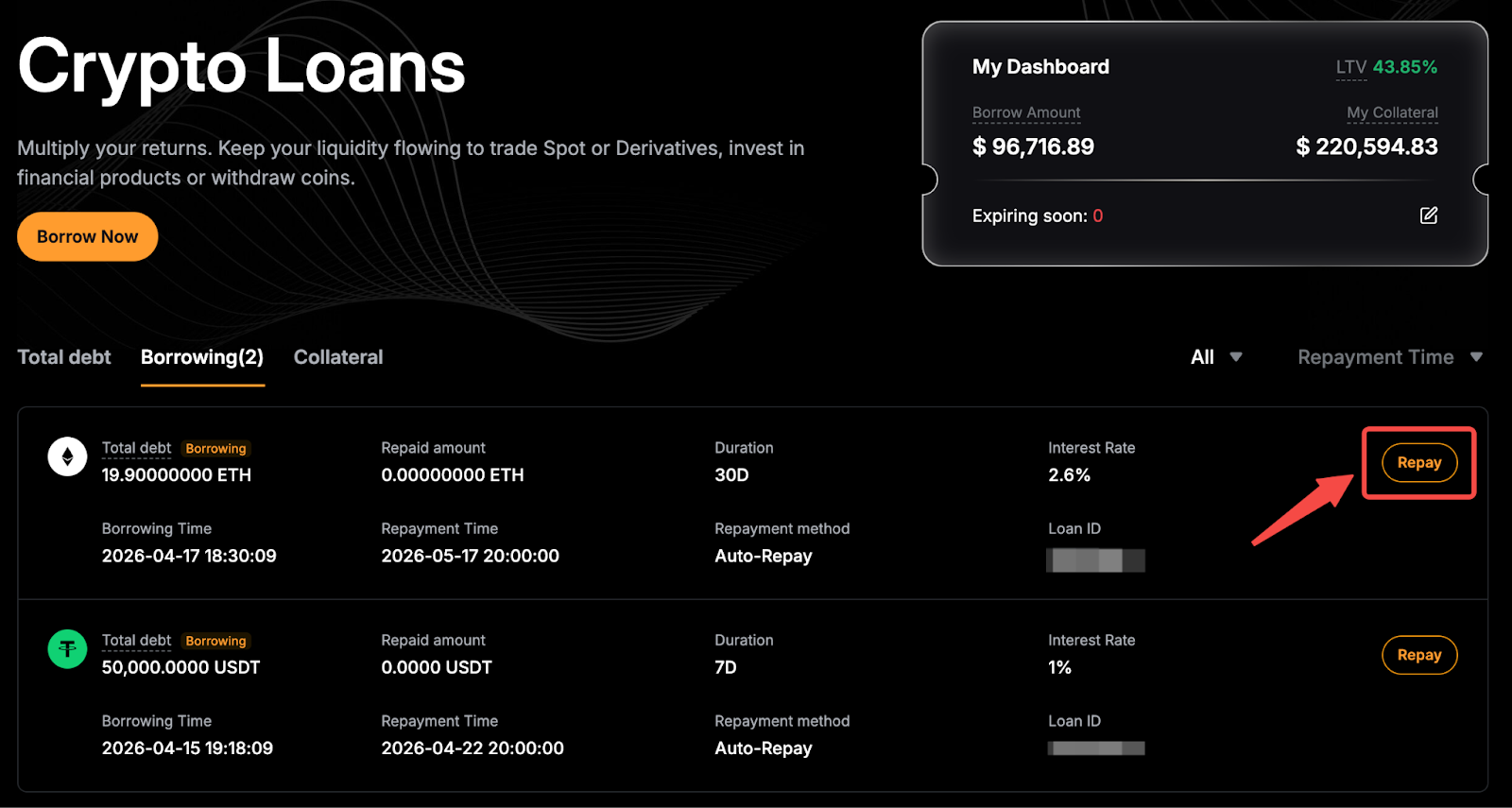
Step 1: From the Overview Dashboard, locate the loan you would like to repay and click Repay.
Alternatively, make repayments directly from the Orders page.
Step 2: Review the repayment details in the confirmation pop-up and click Repay.
If you choose to repay your loan using collateral assets, a repayment fee will apply. The fee rate will be the higher of the repayment fee rates for the collateral asset and the borrowed asset. The value of the collateral used for repayment is determined by a collateral conversion rate, which is based on the index prices of both assets.
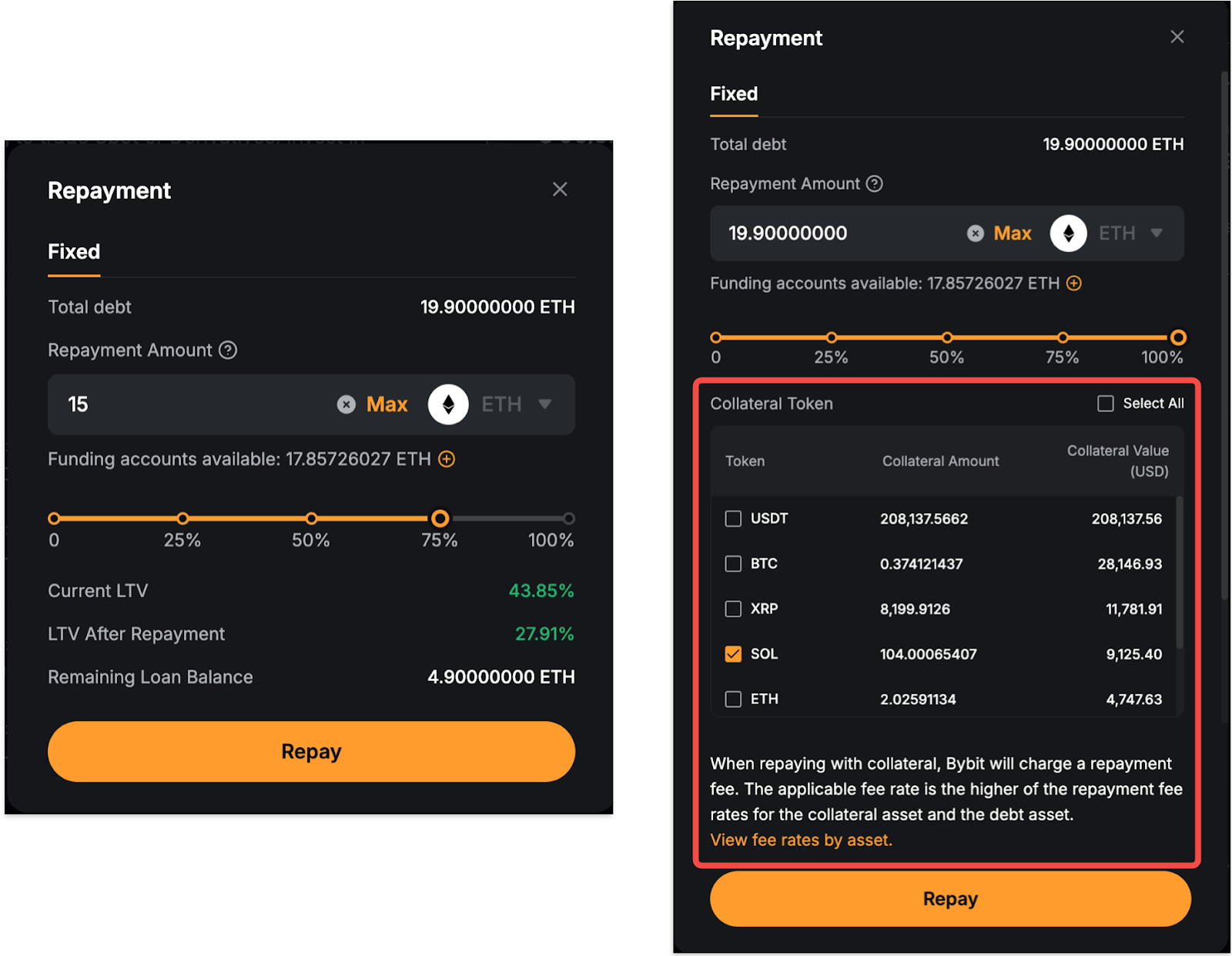
Your loan has now been successfully repaid.
Notes:
— Loans can be repaid at any time, but prepaid interest is non-refundable.
— If your assets are insufficient at the time of auto-repayment, your collateral will be automatically liquidated to cover the loan. A liquidation fee of 2% of the loan amount will also be charged.
— To manage the market impact of large conversion-based repayments, a per-repayment limit of $300,000 (or equivalent) applies. This limit may be adjusted based on market conditions, liquidity, and risk controls.
— You can enable a "repayment due" reminder from the Crypto Loans homepage. Click the edit icon next to Expiring soon in My Dashboard, then set how many days in advance you would like to be notified. When a repayment is approaching, the number of expiring loans will be displayed next to Expiring soon.
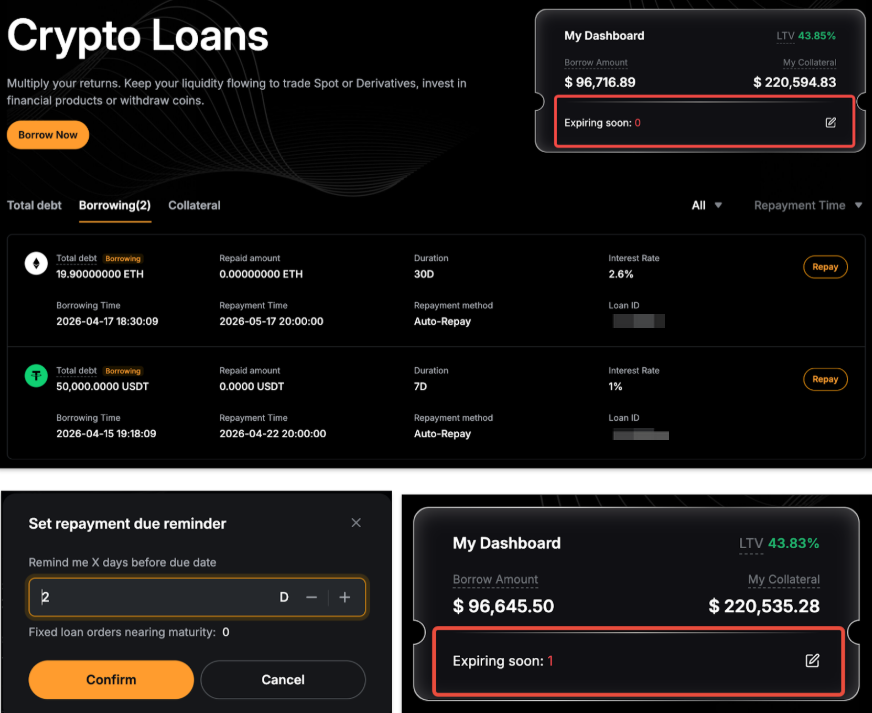
Renew Your Loan
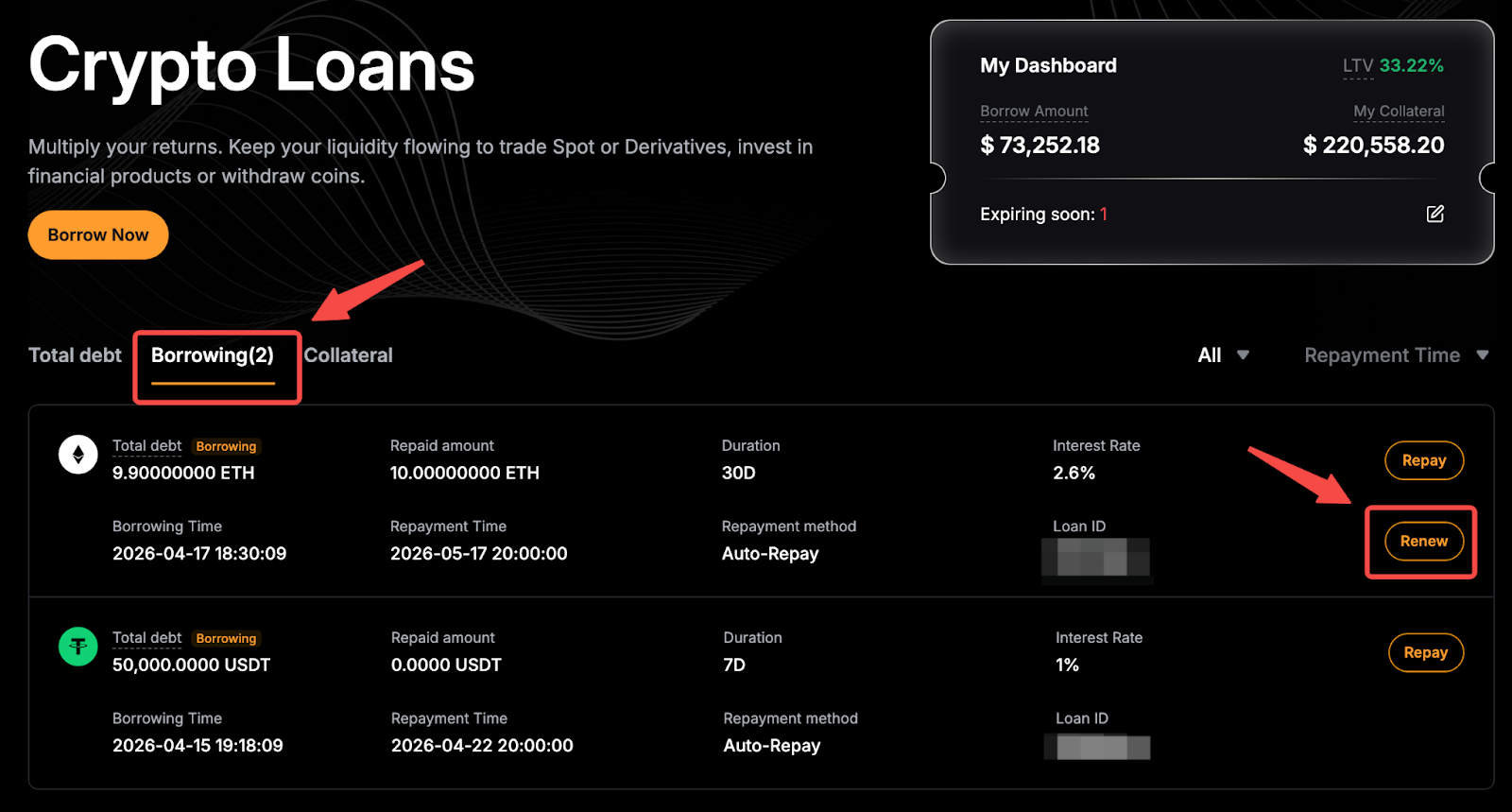
The loan renewal feature is available only for orders that have been partially or fully repaid and are more than 6 hours away from their due date. Each loan contract can be renewed up to 5 times.
Step 1:
For partially repaid orders: From My Dashboard, locate the loan you want to renew and click Renew.
For fully repaid order: Go to the Orders page → Loan contract history, then find the fully repaid loan you want to renew and click Renew.
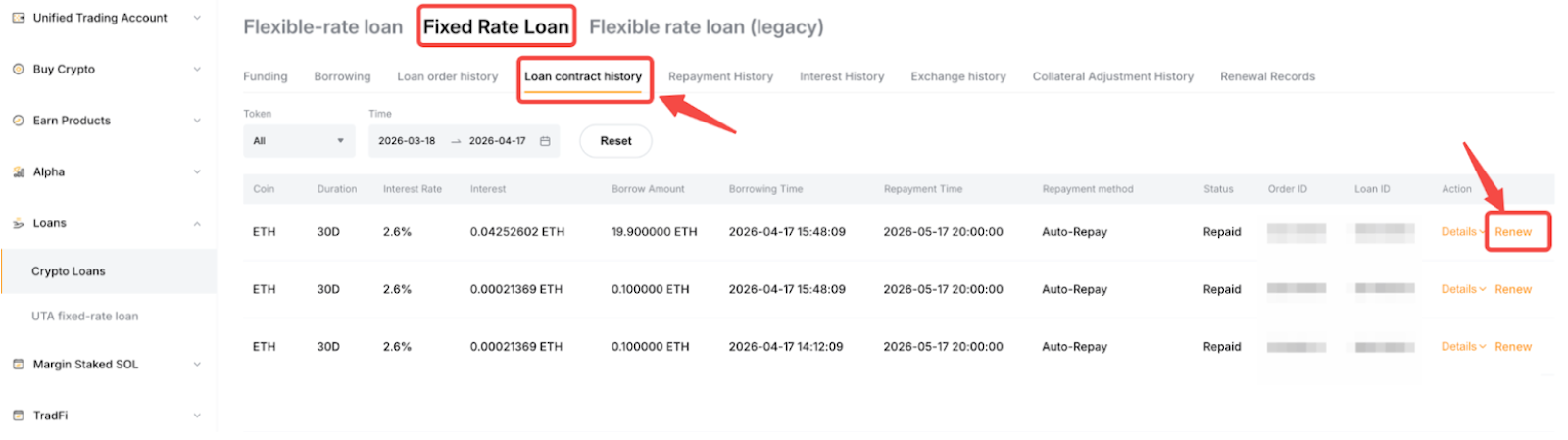
Step 2: Set your collateral for the renewal loan, then review the LTV and repayment due date. Click Renew to confirm.
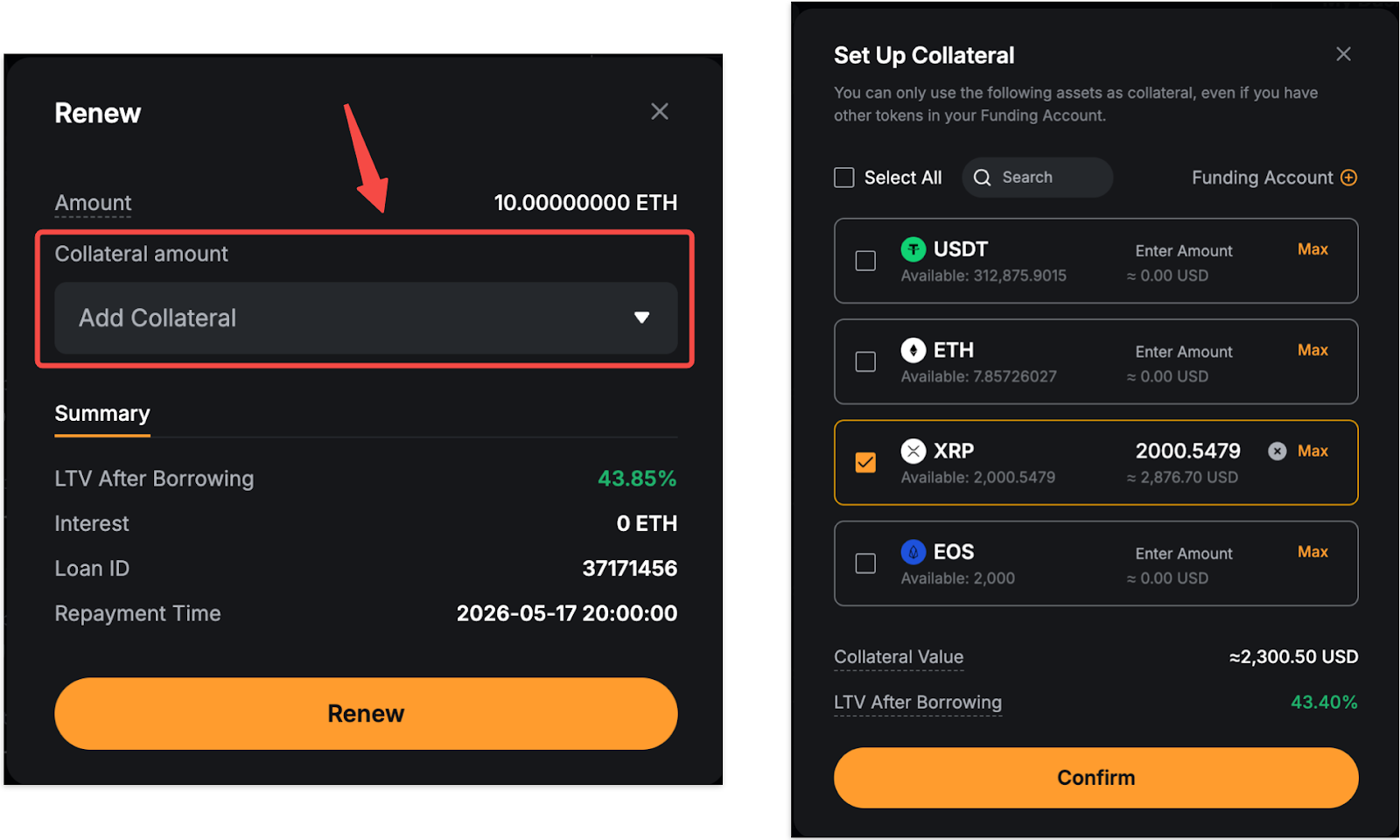
Note: The loan amount is fixed and cannot be changed.
Your loan has now been successfully renewed.
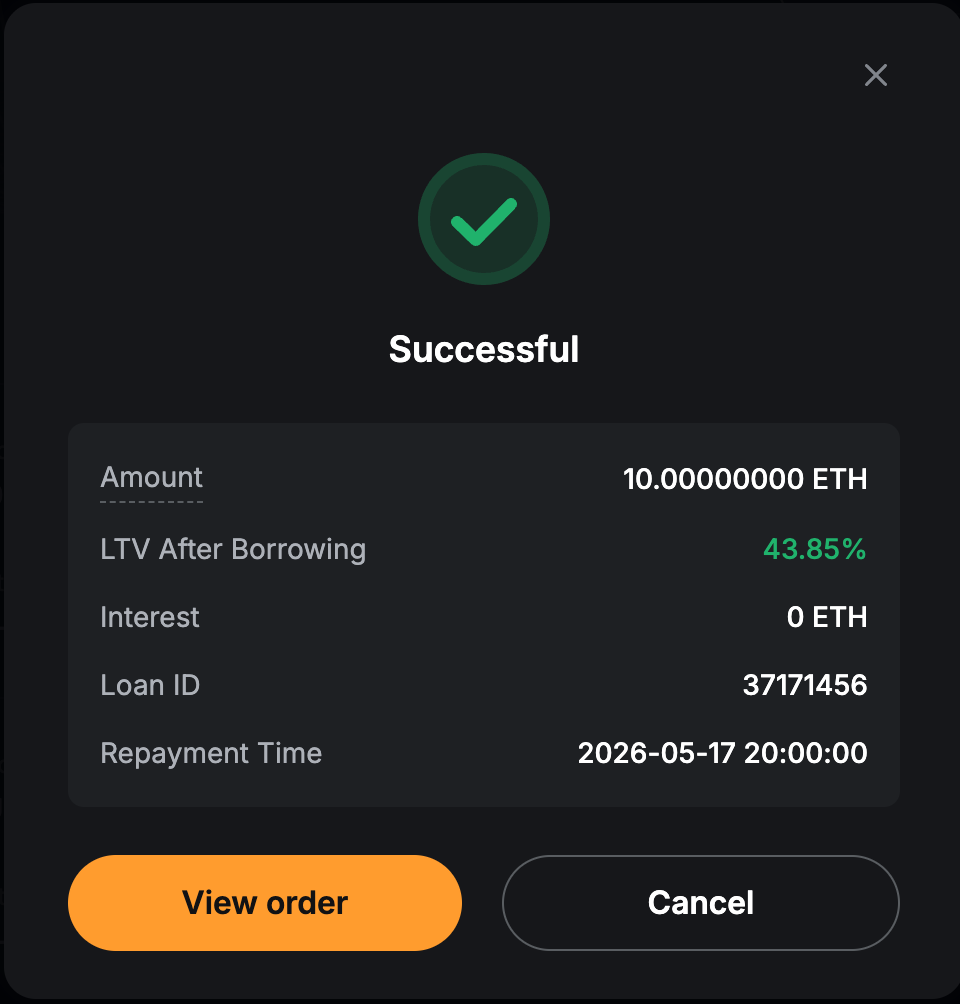
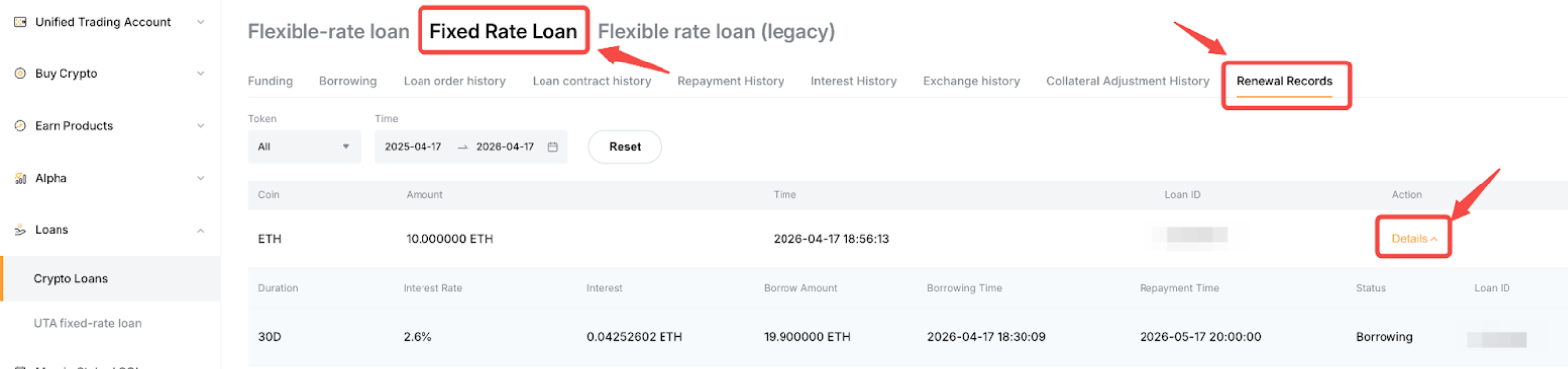
To view your renewal history, click Loan order under the Overview Dashboard → Fixed-Rate Loan → Renewal Records.
If you renew under the same loan order, you can click Details to view the breakdown records.
Adjust Your Collateral
Step 1: From the Overview Dashboard, go to Collateral and click Adjust.
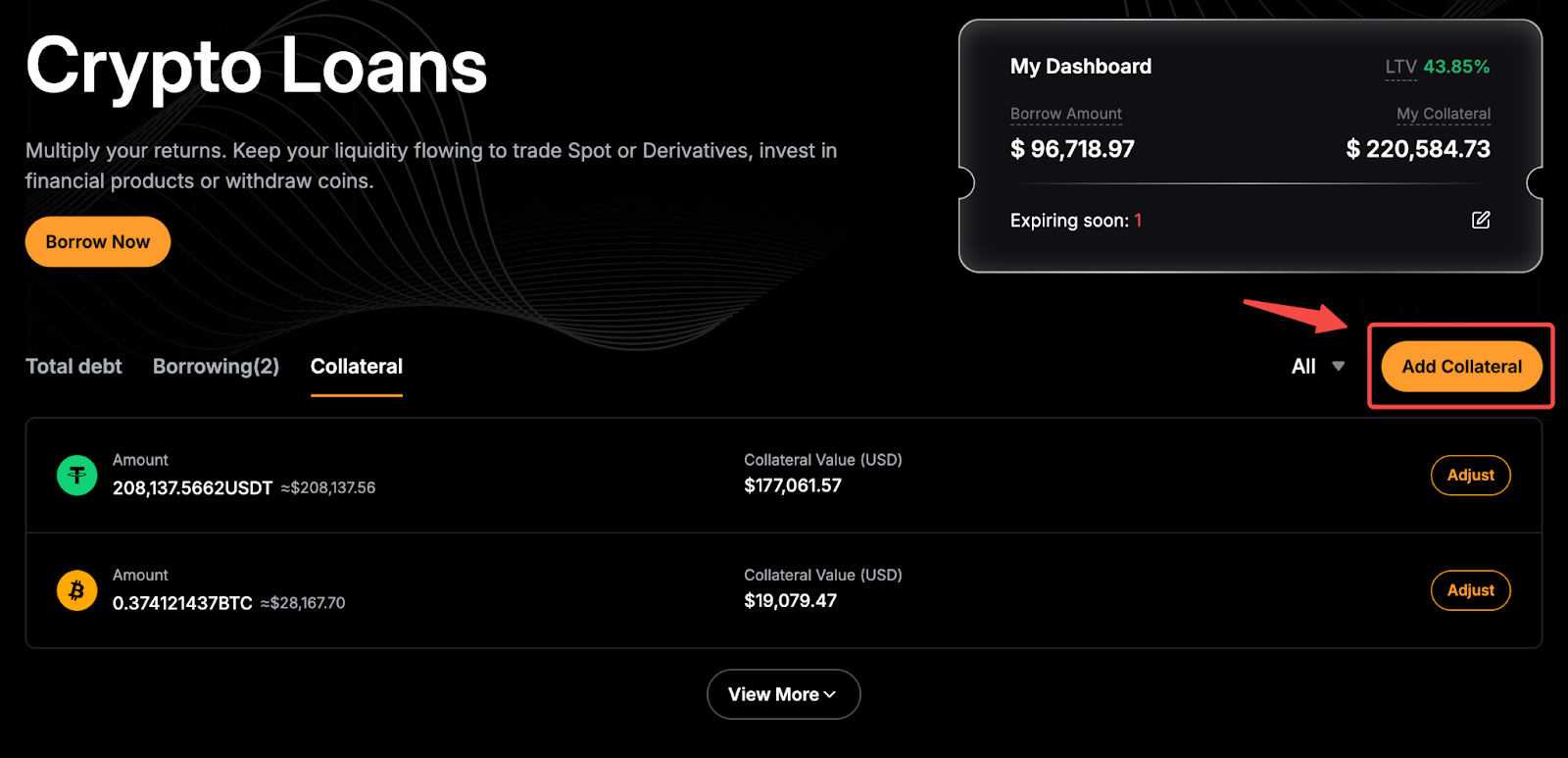
Alternatively, you can add more collateral by clicking Add Collateral in the upper-right corner of the Overview Dashboard.
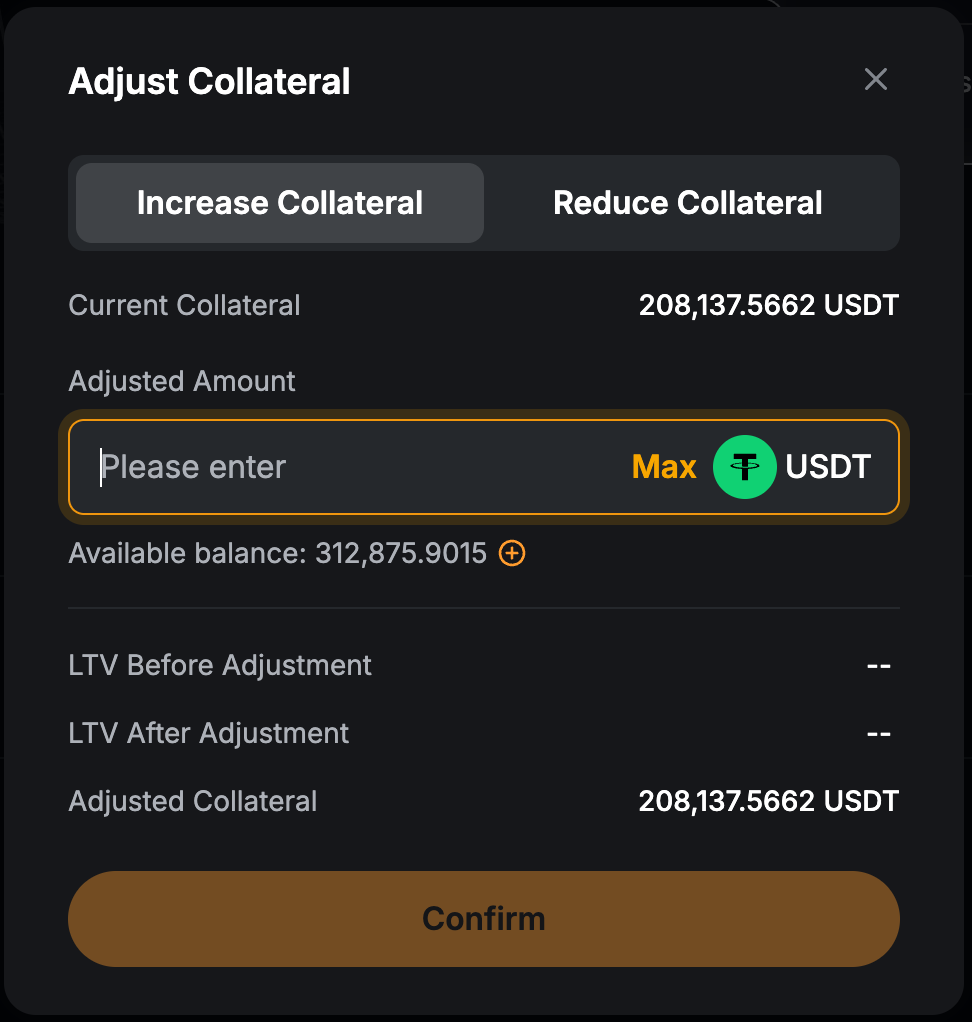
Step 2: To add collateral, go to the Increase Collateral tab. Enter the amount you would like to add, or click Max to use the full available balance in your Funding Account. Adding collateral will lower your LTV and reduce your liquidation risk.
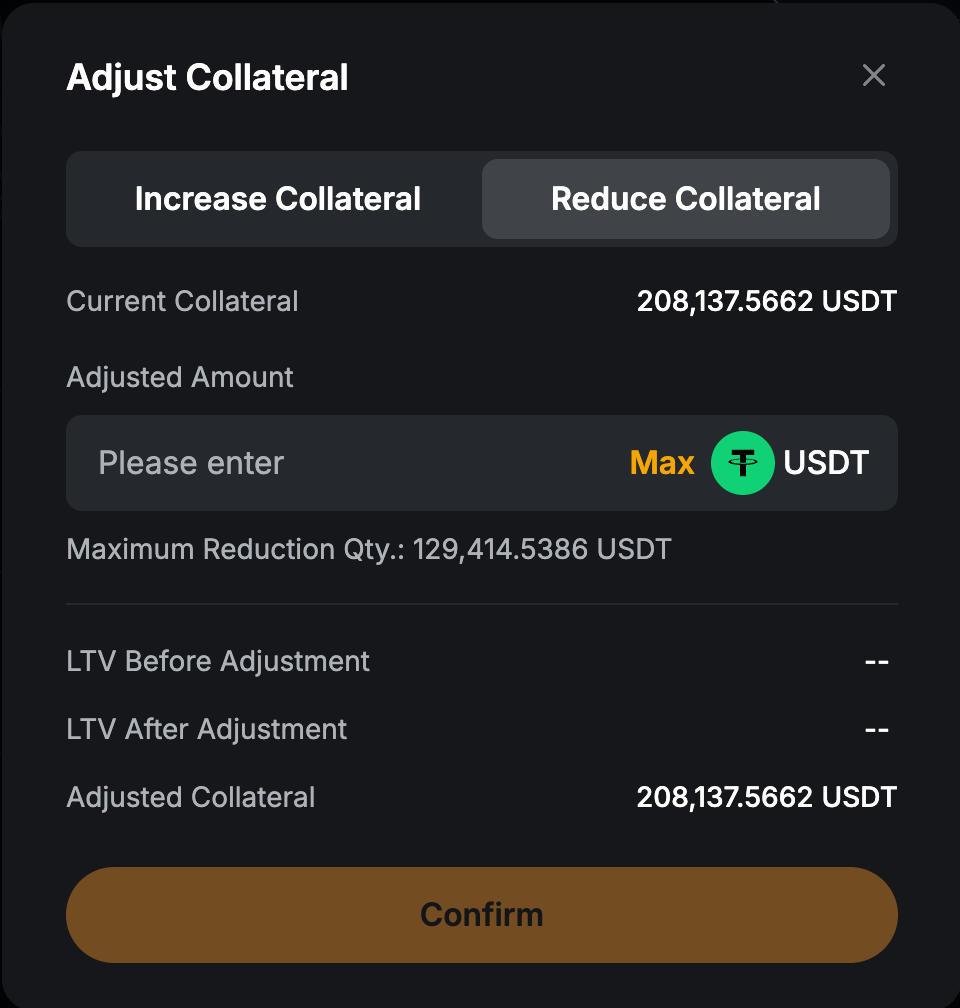
To remove collateral, select the Reduce Collateral tab. Enter the amount you would like to withdraw, or click Max to remove the Maximum Reduction Qty.
Step 3: Double-check the details and click Confirm.
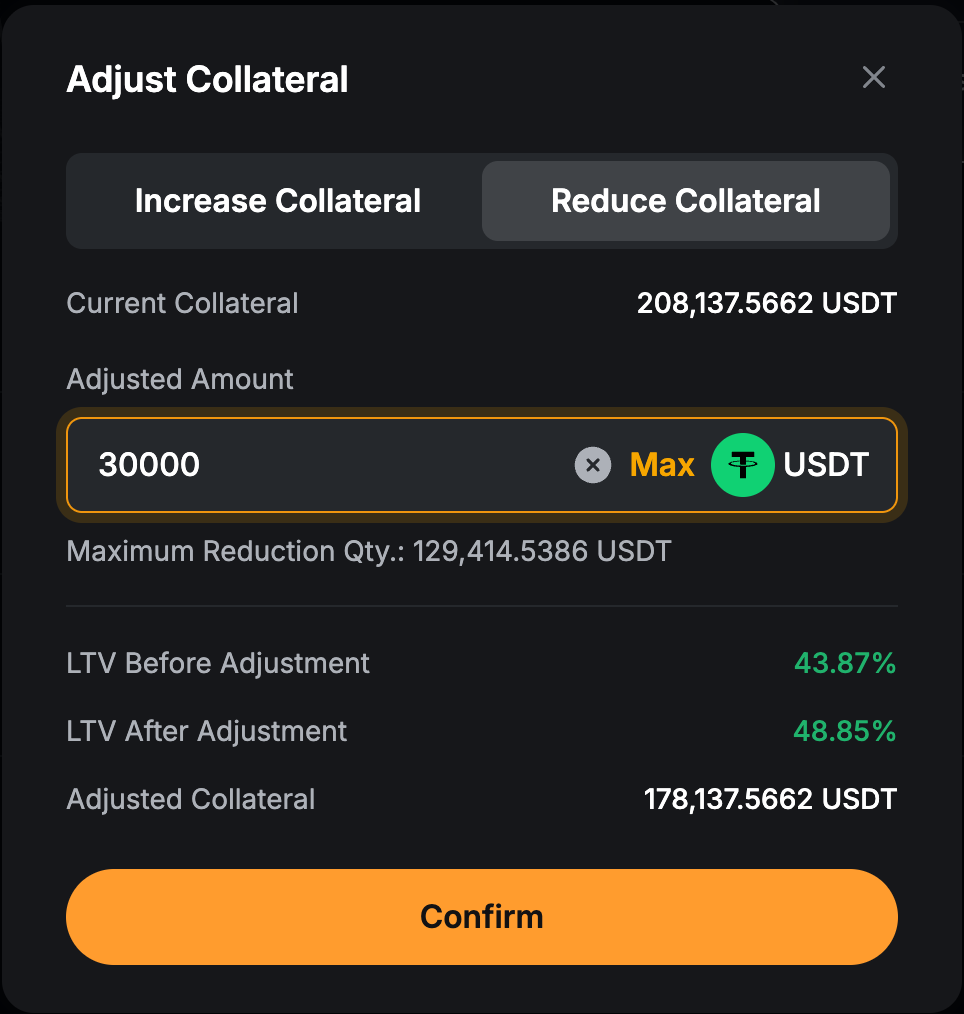
Notes:
— Collateral can only be reduced if the current LTV is below the Initial LTV.
— The Maximum Reduction Qty refers to the amount that brings your LTV back to its initial level. Please refer to the amount shown in the adjustment window.
For more information on Premier Loans, refer to the following articles: